Free Professional Email Signature Generator
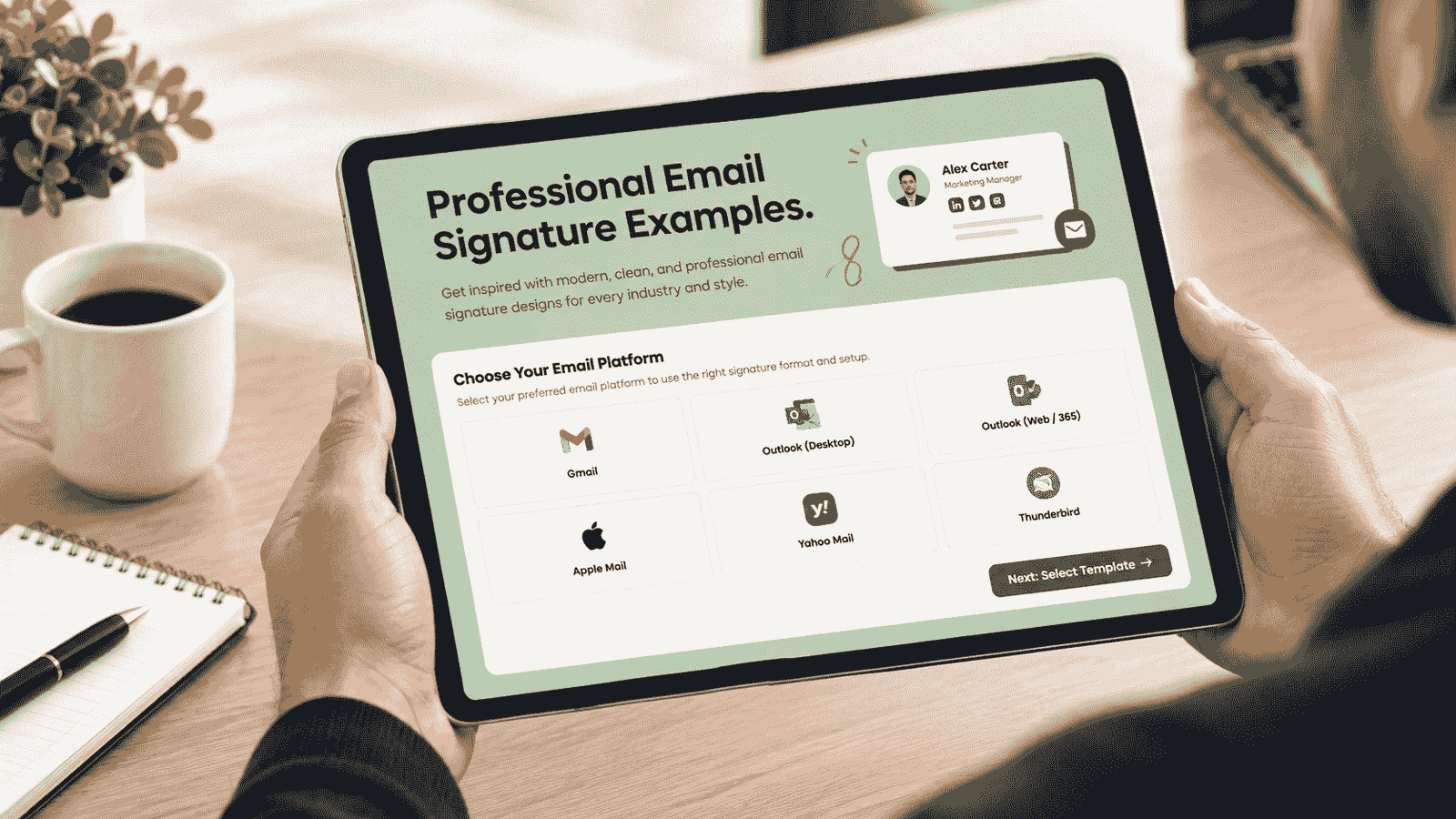
Select Your Email Platform
This decides the exact steps we'll show you in Step 4 to add the signature.
Select a Template
64 designs — 8 layouts × 8 colors. Filter by style or color, then slide left or right to pick one.
Swipe or use the arrows to browse designs, then tap one to select it.
Enter Your Signature Details
Fill in your information — the preview updates as you type.
Apply Your Signature
Copy your signature, then follow the steps below for your selected platform.
How to add it in Gmail
How to Create a Professional Email Signature: Free Templates & Best Practices
- What Is a Professional Email Signature?
- Why a Signature Like This Matters
- What Should a Professional Email Signature Include?
- Essential Elements of a Professional Email Signature
- Professional Email Signature Examples
- Design Best Practices
- Size and Format Guidelines
- How to Create a Professional Email Signature
- Professional Email Signatures for Gmail and Outlook
- How to Make an Email Signature Mobile-Friendly
- Common Mistakes to Avoid
- Templates Worth Starting From
- College Student Email Signature
- Managing Signatures Across a Whole Team
- Do You Need a Legal Disclaimer?
- Conclusion
- Frequently Asked Questions
A lot of people set up their email signature once, years ago, and never look at it again. Maybe it's still got an old phone number, or the logo changed since then, or it's just five lines thrown together with no real order to them. A well-built professional email signature fixes that — it puts your name, role, and contact details in front of the reader without making them dig through the message to find it. Below is what actually belongs in one, how a professional signature for emails should come together, and the steps for setting it up properly in Gmail, Outlook, and a few other places.
What Is a Professional Email Signature?
A professional email signature is the small block of information automatically attached to the end of your outgoing emails — usually your name, job title, company, and a way to get in touch. Unlike a casual sign-off scribbled at the end of a personal message, it's designed once, saved into your email client, and then applied consistently to every message you send from that point forward. Browsing a few examples of email signatures across different industries makes this easier to picture: it's less about decoration and more about giving the recipient the context they need in a glance — who sent this, what they do, and where this conversation can go next if it needs to.
Why a Signature Like This Matters
It's easy to treat this as an afterthought, but it quietly does a lot of work. It saves the reader from having to ask "what's your number?" three emails into a thread. It reinforces your title and company every time you write, which matters more than people expect when someone's deciding whether to trust an unfamiliar name in their inbox. And for a business, a shared, consistent signature format across the whole team makes every outgoing email look like it came from the same organized company — instead of fifteen different people improvising their own version.
What Should a Professional Email Signature Include?
There's no single required format, but most signatures that actually work stick to the same short list of information, and stop there. A professional email signature that tries to do more than this usually ends up doing all of it worse:
- Full name
- Job title
- Company name (and logo, if you have one)
- Direct phone number
- Company website
- One or two social or professional links, at most
Essential Elements of a Professional Email Signature
Beyond the basics, a few smaller details separate a signature that looks finished from one that looks assembled in a hurry:
Professional Email Signature Examples
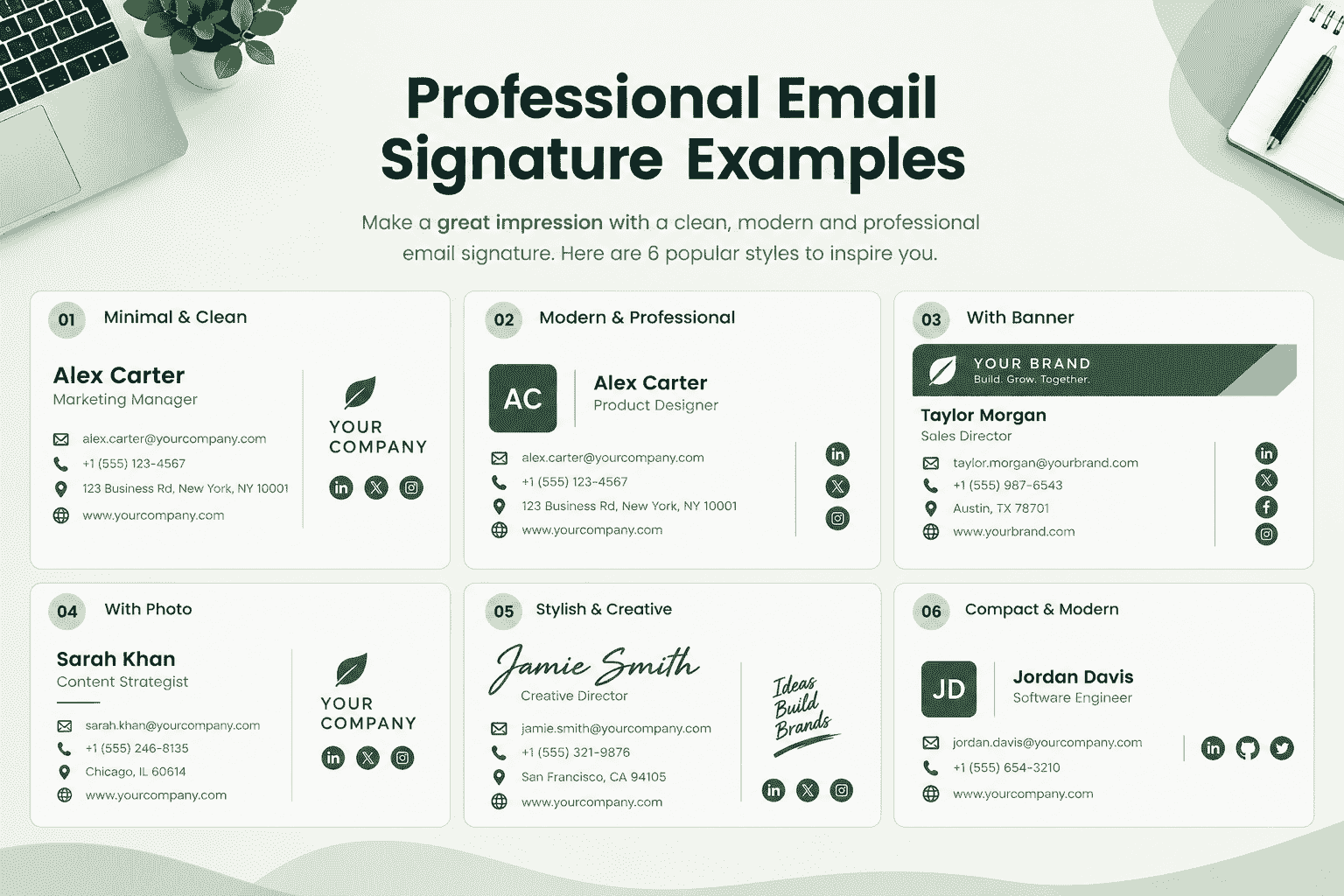
It helps to see the shape of a few before building your own. A minimal professional email signature might read: name, title, and a single phone number, nothing else — the kind of signature a consultant or freelancer uses when they want the focus to stay on the email itself. A fuller version for a mid-size company might add a small logo, the company address, and two social icons lined up neatly beside the name. A sales-heavy version sometimes includes a small banner underneath promoting an upcoming webinar or a scheduling link — useful, but only if it's kept visually quiet enough not to compete with the message above it. Whichever version you land on, the goal stays the same: make it easy to identify who's writing and how to reach them back, without turning the bottom of the email into its own advertisement. If you want something with a bit more personal warmth than plain typed text, it's also worth knowing how to create a handwritten signature and sit it just above your name.
Design Best Practices
Most good email signatures share the same handful of habits, and most email signature design problems come from trying to fit too much in, not too little. A few habits keep it looking clean:
- Stick to one or two colors, pulled from your existing brand if you have one.
- Left-align everything — centered text rarely reads well at this size.
- Use real text, not a signature saved entirely as one image.
- Keep logos and icons small enough that they don't outweigh your name.
- Leave out a quote, a slogan, or anything that isn't contact information.
Size and Format Guidelines
As a rough guide, try to keep the whole thing under about 320 pixels wide and five or six lines tall at most. A logo or headshot usually works best around 100 pixels on its longest edge — big enough that people can actually tell what it is, small enough that it doesn't crowd out your message. And if you're using an image at all, compress it first. A heavy, uncompressed file sitting in every email you send adds up fast, especially for anyone reading on mobile data.
How to Create a Professional Email Signature
You don't need any design skills for this part. Start with the plain text — your name, title, company, phone number, website — typed out with no formatting at all, then read it back like you're the one receiving it for the first time. Once that reads right, go back and add the formatting: bold your name, keep everything else a little lighter, and drop in a thin divider between your name and your contact details. If there's a logo, sit it next to the text instead of stacking it above, so the whole block stays short. Before rolling it out anywhere, email it to yourself and check how it looks on your phone.
Professional Email Signatures for Gmail and Outlook
Both platforms handle this the same general way: you build the signature once inside your account settings, and it's automatically attached to new messages from then on. Setting up your signature in Outlook or Gmail takes about the same five minutes either way. For the exact steps straight from Google, their own Gmail signature help guide is worth a quick look too.
In Gmail:
- Open Settings, then go to the "See all settings" screen.
- Scroll to the Signature section and select "Create new" — this is where any gmail signature template you've saved elsewhere gets pasted in.
- Type or paste in your signature and format it with the toolbar provided.
- Scroll down and save changes at the bottom of the page.
Signature for emails in Outlook:
- Go to Settings, then Mail, then Compose and reply — this is also how to create an email signature in Outlook from scratch.
- Create a new outlook email signature and give it a name you'll recognize later.
- Build it out using the formatting tools in the editor. Most outlook signatures only need three or four lines to look complete.
- Set it as your default for new messages and replies, then save.
How to Make an Email Signature Mobile-Friendly
A signature that looks perfect on a widescreen monitor can fall apart on a phone. The fix is usually simpler than expected: keep the layout narrow instead of wide, avoid placing text and images side by side in more than two columns, and use a font size that's still readable when the screen shrinks it further. Test your signature by sending yourself an email and actually opening it on a phone — not just resizing a browser window — since mobile mail apps sometimes render fonts and spacing differently than expected.
Common Mistakes to Avoid
Looking at a wider range of email signature examples makes the same few habits obvious — they show up again and again in signatures that otherwise mean well:
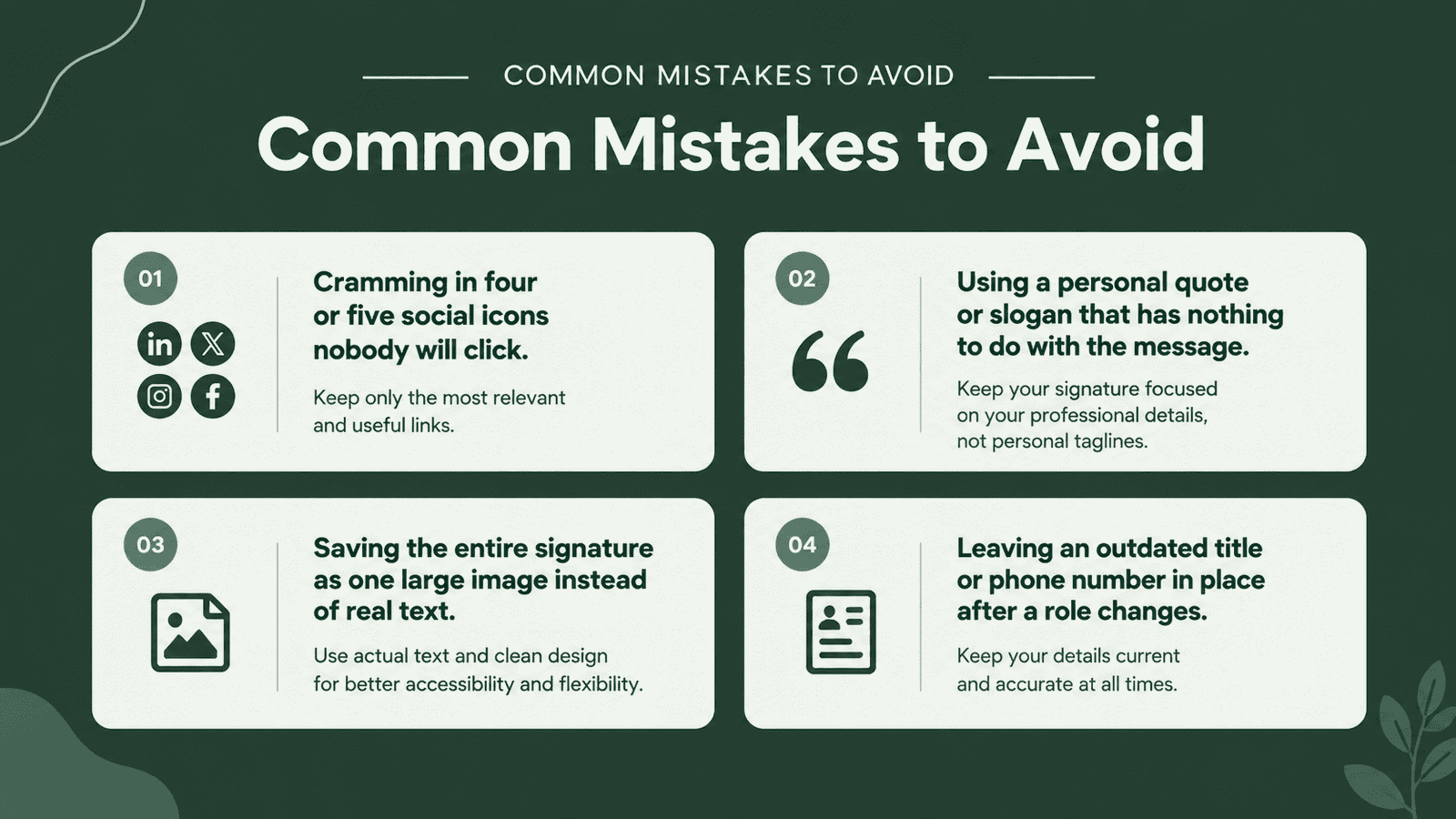
- Cramming in four or five social icons nobody will click.
- Using a personal quote or slogan that has nothing to do with the message.
- Saving the entire signature as one large image instead of real text.
- Leaving an outdated title or phone number in place after a role changes.
- Mixing three or four different fonts and colors in one small block.
Templates Worth Starting From
If you'd rather adapt something than start from a blank line, a few template shapes cover most situations well: a minimal text-only layout for consultants and freelancers, a two-column layout with a small headshot for client-facing roles, a logo-led layout for teams that want the company brand more visible than the individual, and a compact layout built specifically for mobile-heavy inboxes. Looking through a set of email signature samples before you start makes it easier to spot which shape fits your role. A solid professional email signature template usually takes less than ten minutes to adapt once you've picked the right shape for your role, and you don't need a paid email signature maker or a free email signature creator to pull it off — a plain text editor and a bit of patience does the job. If you'd rather not build one by hand, most free email signature tools online will walk you through the same short list of fields. Pick the one closest to your situation, then trim it down rather than adding to it — it's almost always easier to remove an element later than to fix a signature that started too crowded.
College Student Email Signature
Students often assume a signature is only worth building once they have a job title to put in it, but setting one up is worth doing long before graduation. Professors, internship recruiters, and career services staff all read emails from students every day, and a clear sign-off makes you easier to remember and easier to reply to. Keep it simple: full name, university, major, and expected graduation year is enough — add a LinkedIn or portfolio link if you're applying to internships. There's no need to chase cool email signatures full of icons and colors here; a few nice email signatures from actual students tend to be the plainest ones, not the flashiest.
Managing Signatures Across a Whole Team
Once you're past a handful of employees, letting everyone build their own signature usually leads to a dozen slightly different versions floating around — different fonts, different logo sizes, someone's old job title still sitting there from two roles ago. Most companies solve this with dedicated email signature software or an IT-managed setting that fills in each person's name, title, and number automatically. It keeps every outgoing email looking consistent, makes updates painless when the logo or address changes, and means nobody's stuck manually editing their signature every time something in the company changes. For a growing team, rolling out one shared professional email signature template also makes onboarding simpler — a new hire's signature is ready on day one instead of being whatever they happened to type themselves.
Do You Need a Legal Disclaimer?
Some industries — law firms, financial services, healthcare — are required or strongly advised to include a confidentiality notice at the bottom of every email. If that applies to you, keep it small, gray, and clearly separated from the rest of the signature so it doesn't compete visually with your actual contact details. For most other businesses, it's optional, and skipping it keeps the signature lighter and easier to read.
Conclusion
At the end of the day, a signature is just a small habit you set up once and mostly forget about. The best email signatures and great email signatures out there usually aren't the ones with the most going on — they're the ones that get out of the way. Get the details right, keep the formatting plain, and match it to whatever style the rest of your emails already have. Once it's built, open it on your phone to make sure it still looks right, then leave it alone until something about your job actually changes.