
Create A Handwritten Signature
Type your name, choose a hand, and take home a signature worth keeping — 50 styles, real ink colors, ready in under a minute.
Classic
Even, connected, dependable
Minimal
Thin, quick, unfussy
Artistic
Ornate and expressive
Sharp
Bold, angular, decisive
Modern
Balanced, versatile
Handwritten Signature Generator: Make a Signature That Feels Like Your Own
Anyone can create a handwritten signature online in seconds, and the result usually beats the plain typed name most people default to. It gives your name the warmth of real handwriting — the loops, the flow, the small details a plain font can’t capture. This page walks through how the generator works, what different styles look like and how people actually put a handwritten signatures to use once it’s ready.
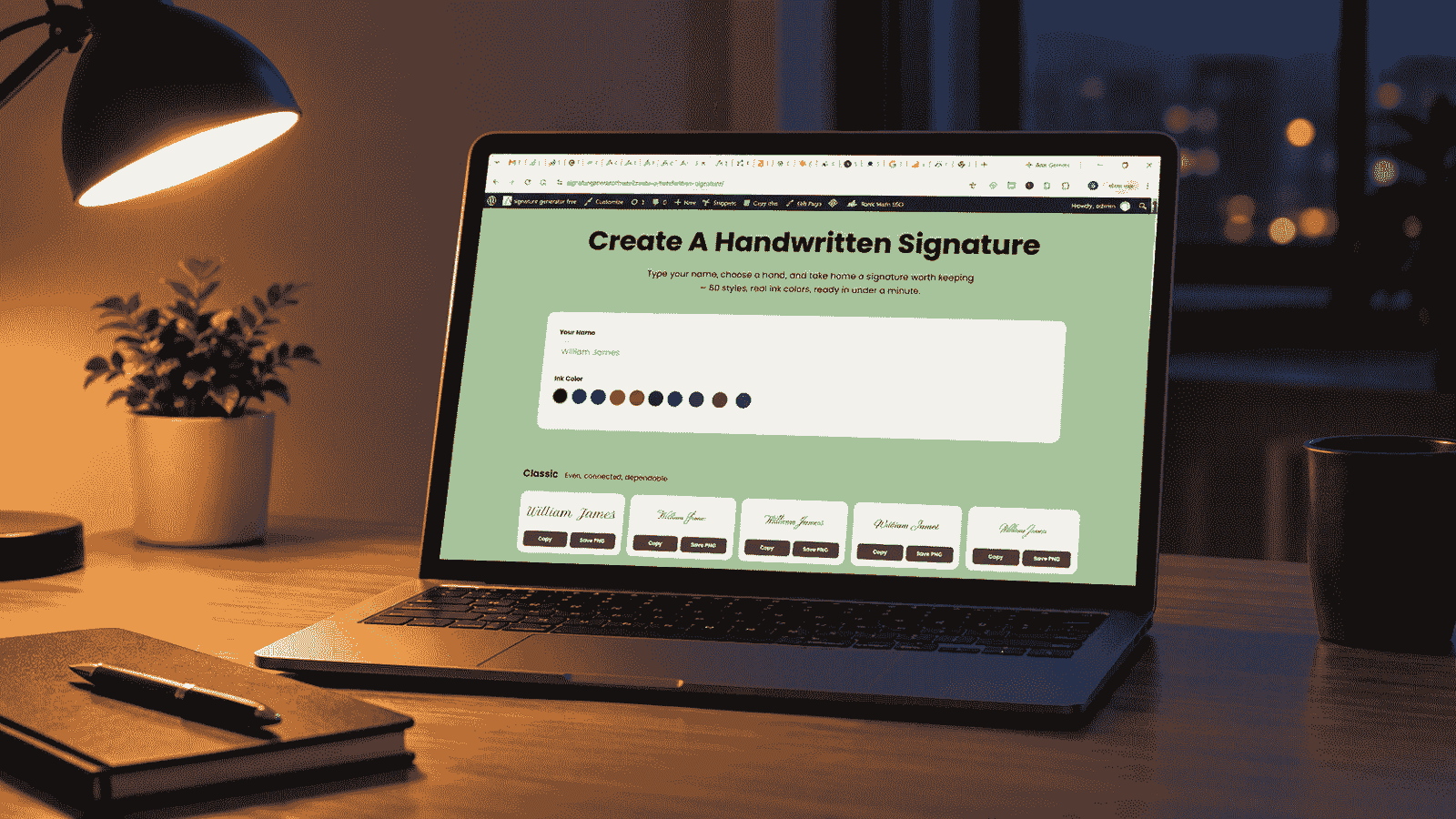
How to Create a Handwritten Signature
You don’t need to draw anything by hand. Simply type your name once, and it instantly appears rendered in a wide range of handwritten-style fonts — each one designed to mimic the natural flow, loops, and character of real handwriting. Think of it less as software and more like a signature creator handwritten in spirit, even though nothing here is drawn with an actual pen.
Scroll through the styles side by side, compare how your name looks in each one, and pick whichever feels closest to how you’d actually sign your name. Once you’ve found the right fit, download it and it’s ready to use.
Styles That Look Like Real Handwriting
Not every handwritten style looks the same, and that’s the point. Some of the signature styles lean into a tight, formal cursive that reads like it belongs on a wedding invitation. Others are loose and casual, closer to a quick note scribbled on a sticky pad — the kind of cool signatures you’d actually want to show off. A few are bold and heavy, like something written with a marker rather than a pen.
Because the generator gives you dozens of these to compare side by side, you’re not stuck picking the first option that loads — you can try a few, see how your actual name looks in each signature style, and settle on whichever version feels the most like you before saving the finished signature image. It’s a small thing, but it changes how it feels to create a handwritten signatures you’ll actually want to reuse.
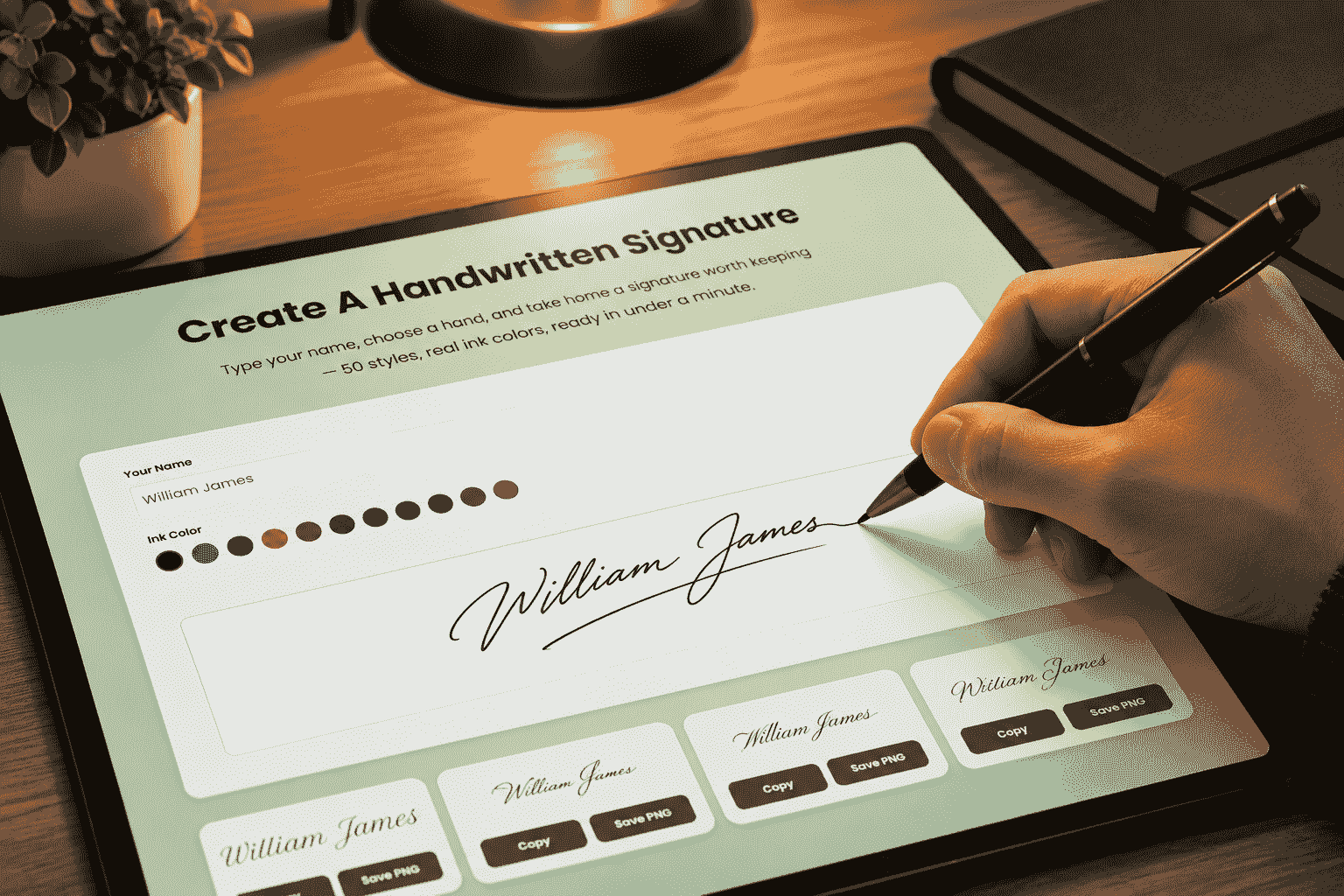
Explore More Signature Styles
Handwritten-style fonts aren’t the only direction worth exploring. The whole idea behind letting you create a handwritten signature in different styles is choice, not just one fixed look. If the loops and casual flow of a handwriting font aren’t quite matching what you had in mind, it’s worth looking at a narrower slice of the same idea: pure cursive. Cursive leans more traditional and tightly slanted, closer to the penmanship taught in school, while handwritten styles tend to feel looser and more personal.
If you’d like to compare that look side by side, Cursive Signature Generator works the same way this one does — type your name once and browse a dedicated set of cursive styles instead. Some people end up creating a handwritten signature for everyday emails and a cursive one for something a little more formal, like a certificate or a signed letter. Taking the extra minute to create a handwritten signature, or a cursive one, that you’re genuinely happy with means it’s yours to reuse everywhere, not just for one document.
Tips for Choosing the Right Style
Every tip below assumes you want to create a handwritten signature you’ll actually enjoy using, not just the first option that loads. A bit of signature practice helps here — even though you’re not using a pen, comparing a few versions of your name trains your eye for what to sign draw the next time you do it on paper. With so many handwritten-style options to compare, a few habits make it easier to land on the right one:
- Type your full name first, then try initials or a shorter version to compare.
- Look for a style that matches how you’d naturally sign — bold, flowing, or minimal.
- Check the readability of the style if it’s meant for official documents.
- Try a few ink colors — black and navy tend to look the most professional.
- Zoom in before downloading to make sure thin strokes are still clear at your chosen size.
Common Mistakes to Avoid When Creating a Signature
A few small missteps show up again and again, and they’re easy to avoid once you know to look for them. It only takes a minute to create a handwritten signature, so there’s rarely a good excuse to rush the process. The most common mistake is picking a style purely because it looks impressive, then realizing it’s unreadable once it’s small — sign-off size, not full-screen size, is what your signature usually gets viewed at. Another is skipping the ink color entirely and sticking with whatever loaded first, when black or navy almost always looks more intentional.
People also tend to create a handwritten signature once and never revisit it, even after their name, title, or company changes. Since the whole process takes under a minute, there’s no real reason not to update it. And finally, downloading a low-resolution version to save time is a mistake that only shows up later, usually right when the signature is stretched across a header or letterhead and starts looking blurry. Whenever you create a handwritten signature, it helps to glance at these small details before downloading, not after.
Where You Can Use a created Signature
Once you create a signature you’re happy with, it works the same way a scanned paper signature would — just without the printer or the scanner:
- PDF documents, contracts, and forms
- Email sign-offs and professional correspondence
- Word documents and digital paperwork
- Invoices, quotes, and freelance agreements
- Artwork, portfolios, and personal creative projects
How to Add Your Signature to a PDF or Digital Document
Most people create a handwritten signature specifically because they need to attach it to a PDF at some point, so it’s worth having this step figured out ahead of time. Most PDF readers, including the free Adobe Acrobat Reader and the built-in tools on both Mac and Windows, let you drop an image straight onto the page.
On a Mac, open the PDF in Preview, click the markup toolbar icon, choose the signature option, and select “Trackpad” or import your saved image instead. On Windows, most PDF editors have an “Insert Image” or “Add Signature” option in the toolbar — upload the PNG you downloaded, resize it, and drag it into place. If you’re using Adobe Acrobat specifically, the “Fill & Sign” tool has a dedicated option to upload an image as your signature, and it remembers it for next time.
For a quicker route, some people just paste the signature directly. If you’ve copied it from the generator, most PDF editors will accept a straight paste into a text or image field. Either way, the process takes under a minute once you create a handwritten signature you’re satisfied with — the harder part is usually deciding which style to use, not applying it.
Why Use a Handwritten-Style Signature?
Typing your name into a plain font rarely feels personal. For anyone without design skills, this doubles as a handwritten signature designer — pick a style, and you’re done. It’s built to help you land on one of the best signatures you’ve had, without hiring anyone or learning any software, and you can create a signature again any time your taste changes.
A Brief History of the Handwritten Signature
Signing your name by hand isn’t a modern invention — it’s one of the oldest ways humans have marked ownership, agreement, and identity. Long before typed contracts existed, a signature was often the only proof that a specific person had reviewed and accepted something, which is part of why handwriting still carries so much personal weight today. Wikipedia has a good overview of how the practice developed across different cultures and legal systems, if you’re curious to dig deeper.
What’s changed isn’t the purpose of a signature — it’s how much effort it takes to produce one that looks right. For centuries, a good signature meant years of practice with an actual pen. Now, you can create a handwritten signature that captures much of that same personal quality in a fraction of the time. The intent behind a signature hasn’t moved, the tools just finally caught up, which is exactly why so many people now choose to create a handwritten signature instead of leaving a plain typed name on everything.
Handwritten vs. Typed vs. Drawn Signatures — What’s the Difference?
People often lump every non-typed signature into one category, but there are really three distinct approaches, and each serves a different purpose. A typed signature is just your name set in a regular font — clean, but about as personal as a receipt. A drawn signature is made by tracing your name with a mouse, trackpad, or finger, which can look authentic but often comes out shaky unless you’ve had some practice. Somewhere in between sits the option most people actually reach for: using a tool to create a handwritten signature by typing your name once and letting a handwriting-style font do the rest.
This middle path keeps the character of real handwriting — the loops, the slant, the small inconsistencies that make a signature look lived-in — without asking you to be steady-handed with a mouse. It’s also far more consistent. A drawn signature can look different every single time you sign it, while a font-based one renders exactly the same way whenever you need it. For most everyday use — emails, PDFs, casual paperwork — that consistency matters more than people expect when you create a handwritten signature you plan on reusing for months.
Is a Handwritten Signature Legally Binding?
A signature you create and save as an image can carry the same visual weight as one on paper, and many everyday documents accept it without issue. Whether it holds up as a fully certified legal signature depends on the type of document and the laws in your region.
Whether you use this tool to create a signature for a contract or just a casual note, the same rule applies: for casual paperwork, personal agreements, and internal documents, a hand-drawn signature is usually more than enough. For contracts that specifically require a certified electronic signature, it’s worth checking with a dedicated e-signature service or a legal professional first.
Your Privacy When Creating a Signature
The name you type is only used to generate the live preview in your browser while you create a handwritten signatures. Nothing is uploaded or recorded in the background while you’re comparing styles.
Your signature is only saved once you choose to download it — it isn’t stored anywhere else unless you decide to keep it yourself.
Conclusion
Whether you came here browsing handwritten signature ideas for my name or just needed a quick way to create a handwritten signature for a form, the generator gives you enough signature ideas to stop settling for a plain typed name. Type it once, compare it across dozens of styles, and download whichever one feels closest to how you’d actually sign — ready for emails, PDFs, contracts, or anywhere else a plain font just wouldn’t cut it.
Frequently Asked Questions
Do I need to draw my signature by hand?
No. This isn’t an artificial intelligence signature generator that invents something on its own — you simply type your name, and it appears in dozens of handwritten-style fonts for you to choose from.
How many handwritten styles can I choose from?
There are dozens of handwriting-style fonts available, ranging from clean and formal to bold and expressive.
Can I change the ink color of my signature?
Yes. You can choose from several ink colors to match the tone you want for your signature.
Does it work on my phone or tablet?
Yes. You can type your name and browse all the handwritten styles just as easily on mobile as on desktop.
How do I save my signature?
Once you create a signature you like, download it as a PNG image directly to your device.
How I add signature in Word?
You can add your created signature to Microsoft Word by downloading it as a PNG image first. Then open your Word document, go to Insert → Pictures, select your signature image, and adjust its size and position where you want it or You may directly copy the signature and paste it anywhere you required.
Can I use a handwritten-style signature on official documents?
It works well for everyday documents, emails, and personal paperwork. For contracts requiring a certified e-signature, check your local requirements or use a dedicated e-signature service.