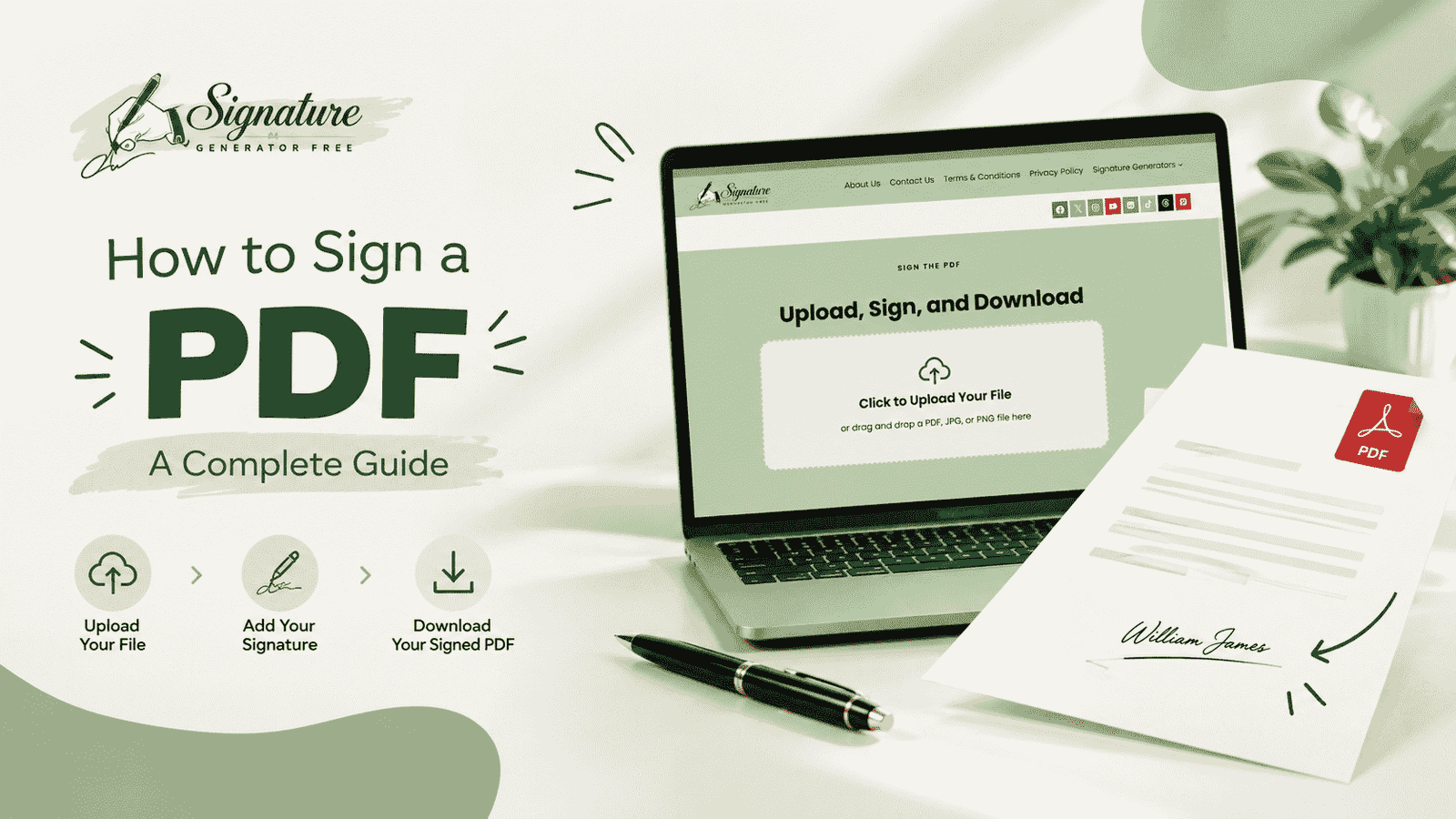
Upload, Sign, and Download
How to Sign a PDF: A Complete Guide to Digital, Handwritten, and AI-Generated Signatures
- Why People Still Struggle to Sign the PDF
- Different Ways to Add a Signature to a PDF
- Free Software and Tools to Sign the PDF
- Using a Signature Generator or AI Tool
- Designing a Handwritten Signature That Looks Like Yours
- Choosing the Right Font and Style
- Adding Your Signature to Email
- How to Sign the PDF — A Simple Walkthrough
- Is a Digital Signature Legally Valid?
- Common Mistakes to Avoid
- Conclusion
- Frequently Asked Questions
Somebody, somewhere, is asking you to sign the PDF right now. A lease renewal, a client invoice, a permission slip your kid's school emailed at 4pm on a Friday — it doesn't matter what it is, the old routine used to be the same: print it, sign it with an actual pen, then scan or photograph the thing and hope the lighting was decent enough to read. Nobody really does that anymore. You can sign the PDF straight from your laptop or your phone screen and have it back in someone's inbox before your coffee's even cold.
What's interesting isn't just that this got faster. It's that the tools got better. You're no longer stuck with a typed name in some default font — there's a real range now, from a quick script-style signature to something you've genuinely designed yourself. This piece walks through the different ways to sign a PDF document, which software is actually worth your time, and how to end up with a signature that looks like you signed it, not like a computer stamped it.
Why People Still Struggle to Sign the PDF
Here's the thing — digital signing has been around for years, and people still pause when they need to sign the PDF for something that feels official. Part of it is uncertainty. Does a typed name count? Does it need to look handwritten to be taken seriously? I get why people second-guess this. And part of the problem is just hardware — not every laptop makes it obvious how to add a signature to a PDF, so folks default back to printing out of habit rather than necessity.
Most operating systems have this built in now, though, and where they don't, there's usually a free browser tool that covers the gap. Once you know where to look, the process to sign the PDF stops feeling like a technical chore and starts feeling like, well, filling out a form.
Different Ways to Add a Signature to a PDF
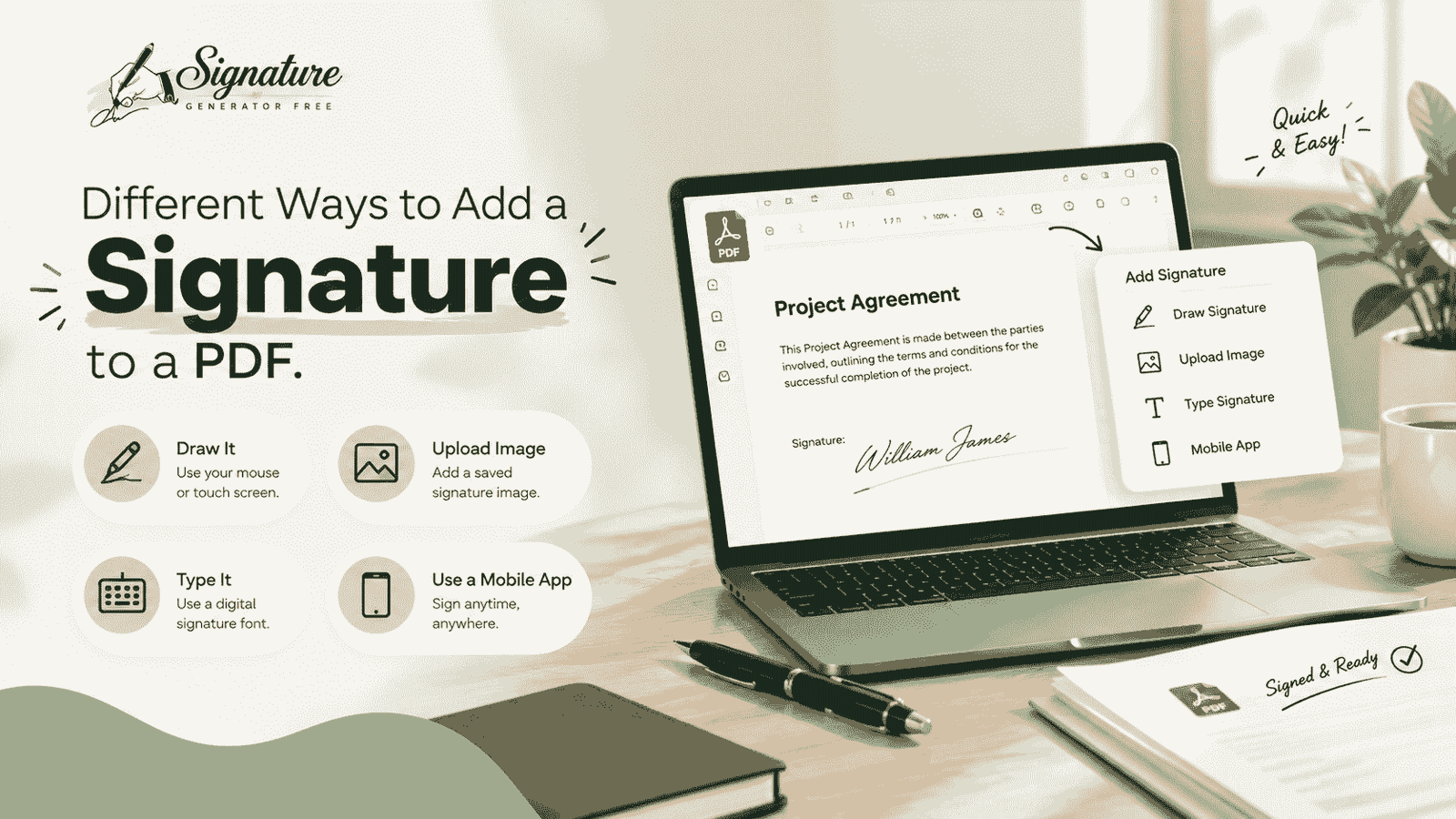
There's more than one way to sign a PDF document, and honestly, which one you pick depends less on preference and more on where that file is going next.
Typed signatures are the quickest — you type your name, the software runs it through a script font, done. It works, though it can look a little generic if you're not careful about which font it defaults to. Drawn signatures are closer to the real thing; you're using your finger, a stylus, or a trackpad (clumsy as that can be) to write your actual name. Then there's the uploaded image route, where you sign on paper first, photograph it, and drop that in as a transparent image — this one keeps your real handwriting, and it's probably the most common way people add a signature to a PDF without changing what it actually looks like. And finally there's certificate-based signing, which is a different animal entirely — it encrypts identity data into the file itself, and it's mostly reserved for legal or financial documents where a visual mark isn't enough on its own.
For most day-to-day stuff — approvals, agreements, forms — a drawn or uploaded signature does the job fine. You don't need the certificate route unless someone specifically asks for it. Whatever method you land on, the point is the same: sign the PDF in a way that's readable, consistent, and won't raise eyebrows if anyone looks at it twice.
Free Software and Tools to Sign the PDF
Here's something people don't realize until they need it — you almost never have to pay for this.
Windows users have Microsoft Edge's built-in PDF reader, which includes a drawing tool, plus the free version of Adobe Acrobat Reader handles both typed and drawn signatures without issue. On a Mac, Preview does something genuinely clever — you can sign with your trackpad, or hold a paper signature up to your webcam and it'll clean it into a digital version automatically. iPhone and iPad users have Markup tucked inside Files or Photos, which is more than enough for dropping a signature onto a page. And on Android, Google Drive's viewer plus a handful of free apps get you roughly the same result.
If installing anything feels like overkill, plenty of browser-based sites work fine as free PDF signature software — upload, sign, download, no account required. These are honestly your best bet if you only need to edit and sign PDF files once in a blue moon. Installing a full app for something you do twice a year is just extra clutter.
Using a Signature Generator or AI Tool
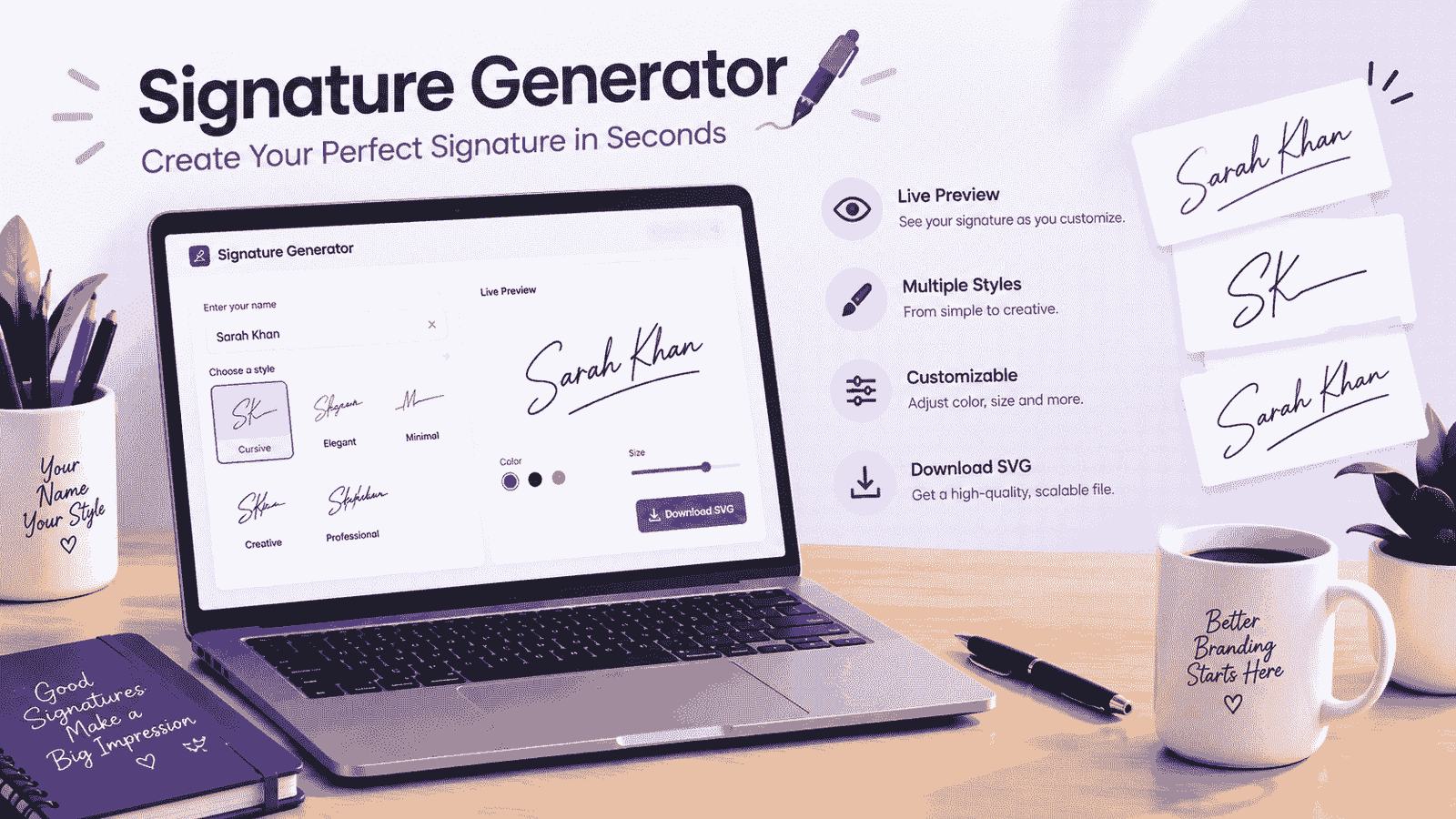
If your actual handwriting is, let's say, not something you'd want on a formal contract, a sign generator solves that pretty quickly. Type your name in, and it spits out a signature-style graphic using a script font — not a work of art, but it reads as intentional rather than rushed.
Some of these have gotten smarter, too. An artificial intelligence signature generator will actually study handwriting patterns and produce something with real stroke variation, so it doesn't come out looking too clean or mechanical. People searching for a signiture creator online are, in most cases, after exactly this — a few decent style options to pick from instead of settling on whatever the first result gives them. Others go looking specifically for an auto signature or an autograph signature because they just want one consistent mark they can reuse without redrawing it every single time.
Whatever you end up calling it, the process is roughly: type your name, scroll through a handful of styles, download whichever one actually looks like something you'd sign in real life. Worth trying more than one option — the difference between a stiff, robotic result and something that reads as genuinely yours usually comes down to the font the tool picked by default.
Designing a Handwritten Signature That Looks Like Yours
Not everyone wants the typed or AI route, and that's fair. If you want to create a handwritten signature that's actually your own, grab a pen and paper first — seriously, skip the screen for this part. Signature practice matters way more than people give it credit for. Most signatures that look effortless got that way because someone wrote their name fifty times until certain letters just started merging on their own.
Try your name a few different ways: fully spelled out and legible, partly connected, or reduced down to initials with a flourish tacked on. If nothing's clicking, looking through a few handwritten signature ideas for my name searches can actually help — not to copy someone else's exact signature, obviously, but to notice what you're drawn to. Looping capitals? A straight underline? Tighter, more condensed letters?
Once you've landed on something, you can sign draw it straight onto a tablet, scan the paper version in, or use a handwritten signature designer tool built to mimic real pen pressure and stroke thickness. These exist for one reason — to turn a typed name into something that reads as genuinely handwritten instead of obviously generated, which matters a lot if you're going to reuse this same mark on contracts for the next several years. If you'd rather skip the trial and error on paper, handwritten signature generator lets you try a range of styles on screen first and download whichever one actually feels like you.
Whichever path you take, consistency beats a one-time-only masterpiece. A handwritten signature you can reproduce the same way every single time is more useful than one that looks incredible once and completely different the next.
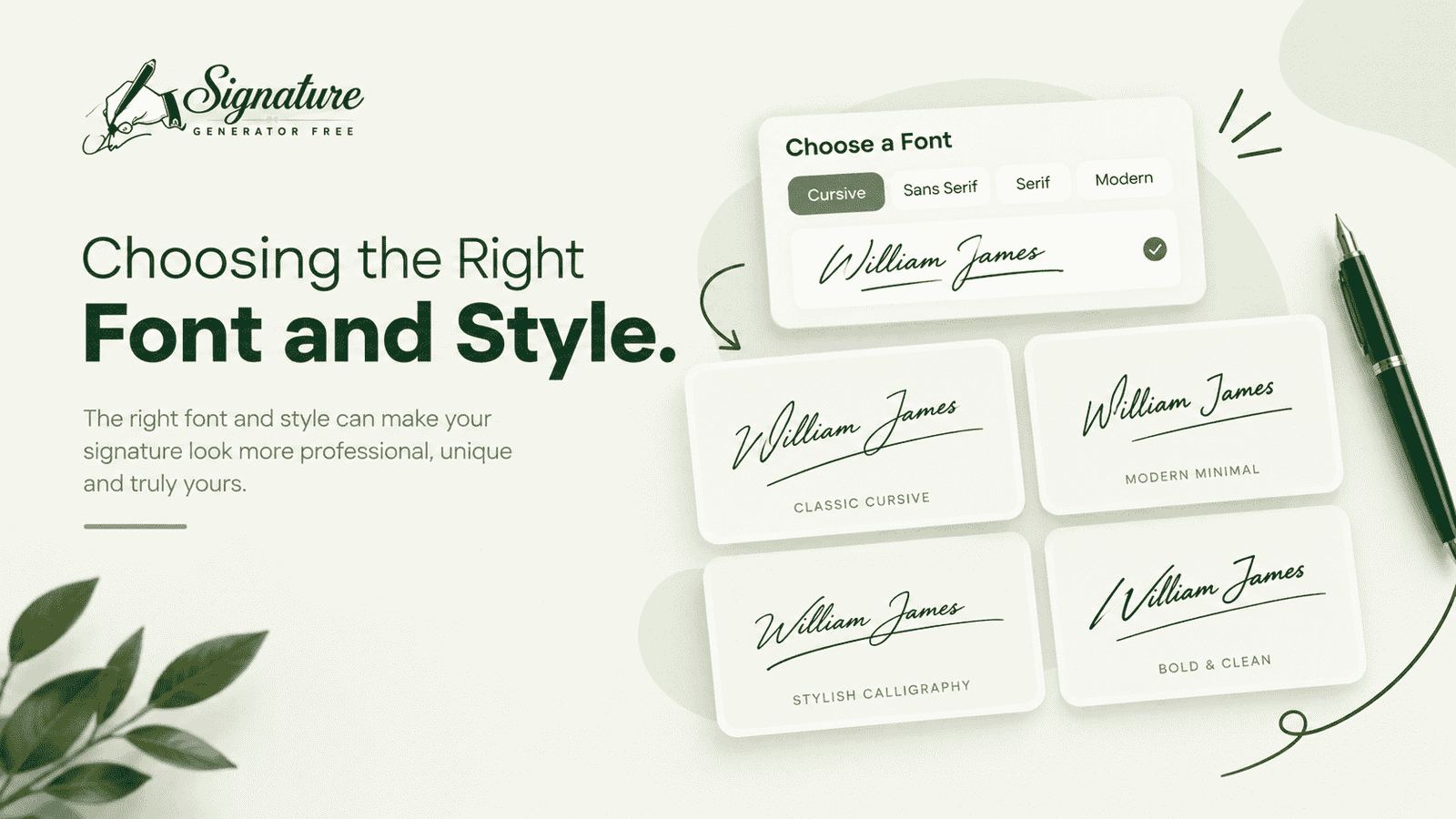
Choosing the Right Font and Style
People underestimate how much the font actually matters here. The right font for a signature needs to feel personal without turning into a puzzle to read, and it has to hold up whether it's blown up large on a certificate or squeezed tiny at the bottom of an email.
When you're comparing options, pay attention to how each font handles your specific letters — the best font for signature use for one name can look completely cramped with another. A couple of things to keep in mind: steer clear of anything so decorative that the letters start bleeding into each other, and always check the signature small before locking it in, because something that looks fantastic full-screen can turn into an unreadable smudge the moment it's shrunk down.
If you're browsing signature designs just to see what's out there, it helps to mentally sort them — formal, casual, or something bolder and more stylized. Some people are drawn to cute signatures with a light curve to them, others want cool signatures that look like a fast, confident scrawl. There isn't really a universal best signature font; it depends on how formal your usual paperwork is, and whether you'd rather your mark read as a name or as more of a personal symbol. A word signature — one that stays close to your actual name instead of turning abstract — is generally the safer pick for professional use, mostly because people can actually read and verify it.
Adding Your Signature to Email
Once you've got a signature image you're happy with, don't just leave it in the PDF folder. Slap it into your email footer too — it's an easy way to make routine messages look more put-together, especially anything client-facing.
For email signature ideas, the trick is restraint: keep the actual visual signature small, and put your name, title, and contact info underneath it in plain text. You're going for a professional email signature that renders cleanly on desktop and mobile, not some oversized graphic that pushes the actual message down the screen. Setting this up on a phone is a bit more fiddly — an iphone email signature has to go through the Mail app's settings, and since the built-in editor only handles plain text, you'll typically need to add the image manually or switch to a mail client that supports HTML signatures.
How to Sign the PDF — A Simple Walkthrough
If this is your first time, here's roughly what the process to sign the PDF looks like no matter which tool you've picked:
- Open the PDF in your reader, or upload it to a browser tool.
- Find the signature or markup option — it's almost always a pen icon.
- Pick your method: type, draw, or upload an image.
- Drop the signature on the right line.
- Resize it so it fits naturally instead of taking over the page.
- Save under a new file name and keep the original unsigned.
- Send it back the same way it came to you.
Once you know where the tool lives in your app of choice, the whole process to sign the PDF takes under two minutes. First time's always the slowest — after that, most people just reuse the same saved signature, which is exactly why it's worth getting the design right early instead of settling for whatever you drew in a rush the first time.
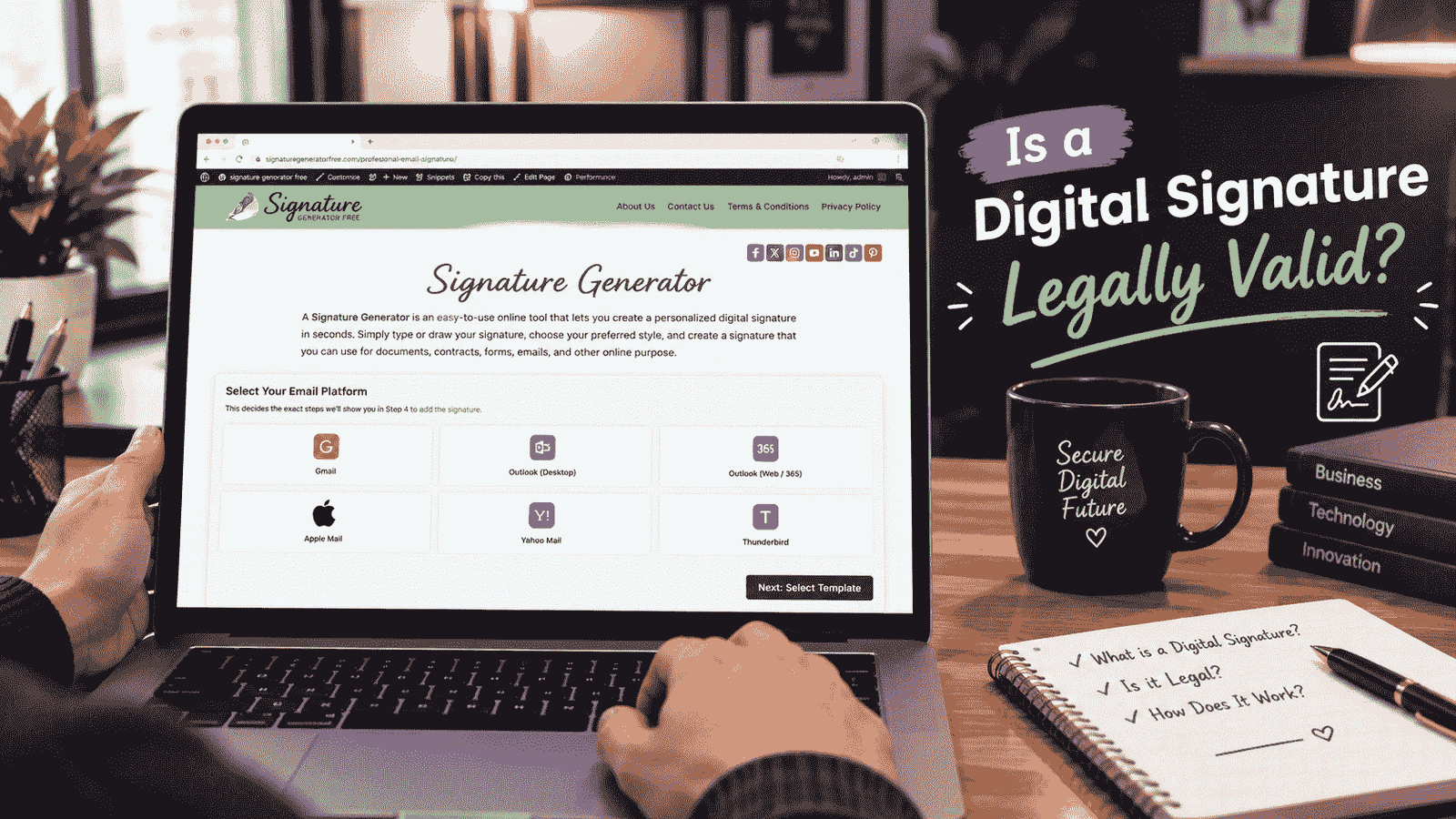
Is a Digital Signature Legally Valid?
For most everyday paperwork — internal sign-offs, casual agreements, anything that doesn't need a notary — a typed or drawn mark used to sign the PDF carries roughly the same weight as pen on paper. Courts in plenty of places recognize electronic signatures, under laws like the U.S. ESIGN Act or the UK's Electronic Communications Act, as long as both sides are fine with the electronic version.
That said, some paperwork asks for more than a visual mark — property transfers, certain government filings, specific legal contracts. Those might need a certified digital signature, or an actual notary. If you're not sure whether an electronic version will hold up, it's worth checking the actual requirements for that document rather than just assuming a drawn signature covers it.
Common Mistakes to Avoid
A few habits keep tripping people up. Signing in a color that doesn't print or fax well is one. Making the signature way too big for the page is another — it ends up looking careless instead of confident, which is the opposite of what you want. Reusing a scanned image with a white background instead of a transparent one is an easy miss too, and so is skipping a final look-over after placing the signature to make sure it actually landed on the right line.
None of these are hard to fix. They're just easy to overlook when you're trying to get a document back to someone in a hurry.
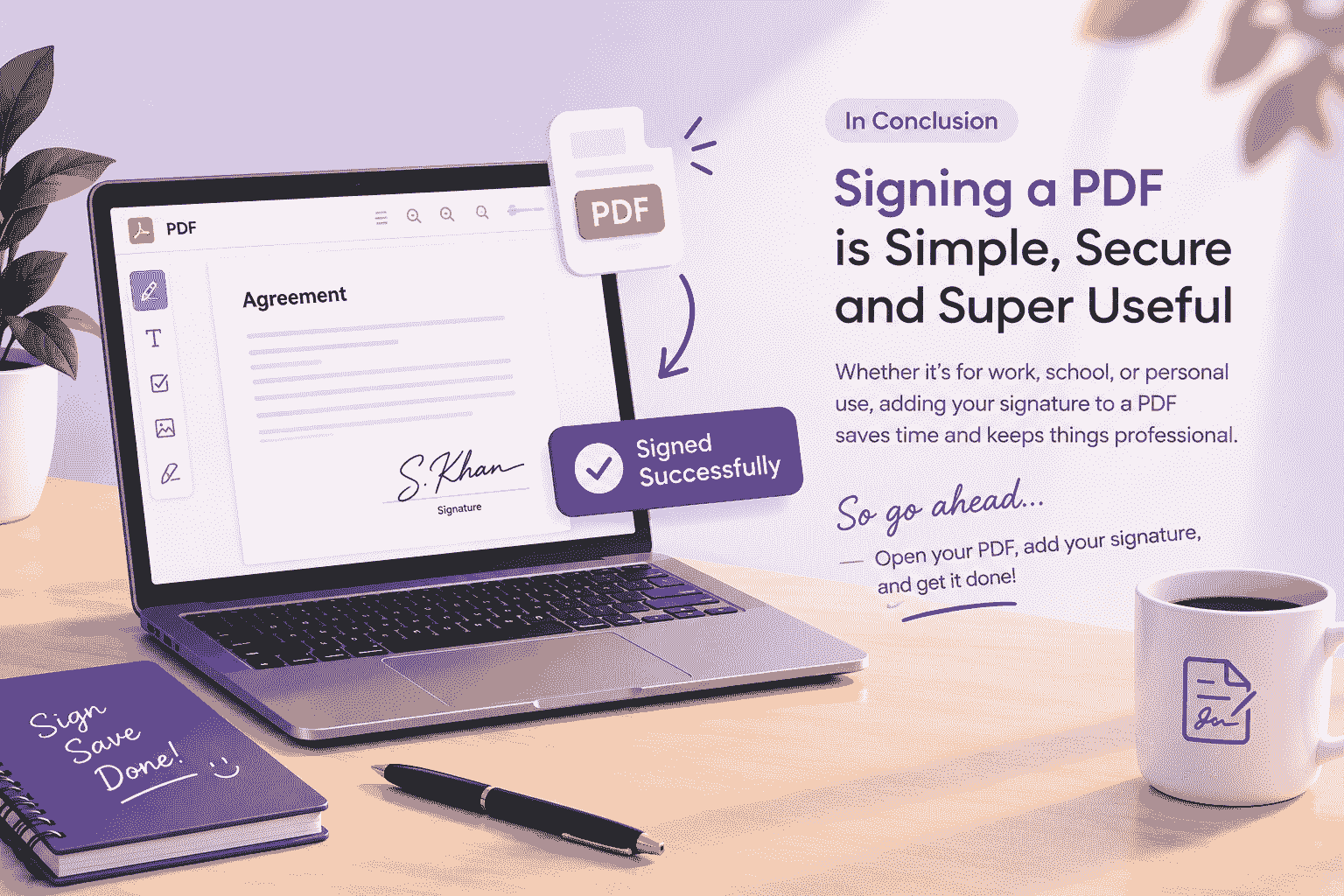
Conclusion
Signing a PDF really isn't the hassle it used to be — but doing it well still takes a little care. Type your name, draw it by hand, or let a sign generator design something polished; the end goal doesn't change. You want a signature that's readable, consistent, and actually feels like yours. Find a style and method that works, then stick with it across your documents, contracts, and email, so the mark you're using today is still instantly recognizable a year from now.